
Asynchronous processing of platform's operations
Some operations in the platform might take time to complete. This article explains why, what happens while you wait, and how to check on the status of any operation.
Why operations work this way
When you trigger certain actions in the platform like running an allocation, uploading data, reconciling transactions, or deleting allocations, the platform doesn't always complete them instantly. These operations can involve processing large volumes of data and updating many related objects at once. To handle this reliably and avoid conflicts when multiple operations run in sequence, the platform queues them and processes them one at a time in the background.
This is called asynchronous processing. It means you don't need to wait on the page for an operation to finish — you can keep navigating the platform and check back once it's done.
Operation statuses
Every operation moves through one of four states:
| Status | What it means |
|---|---|
| In the queue | The operation has been received and is waiting to be picked up |
| In progress | The operation is currently being processed |
| Success | The operation completed successfully |
| Failed | Something went wrong: you can view the error details |
How to check the status of your operations
The platform offers two ways to monitor operations:
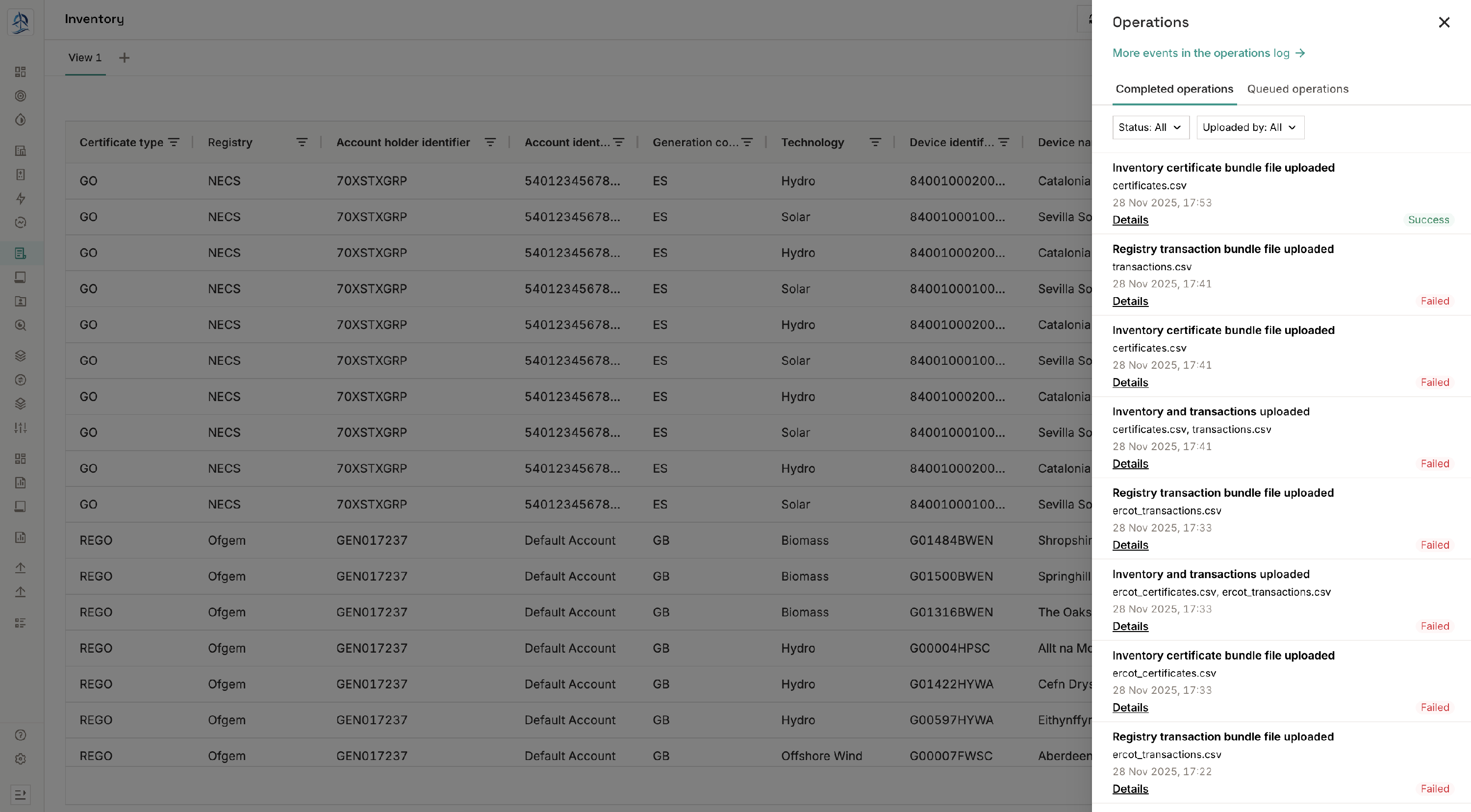
Side panel
A quick-access panel is available from any page in the platform. Click the system icon in the top bar to open it. The panel shows your queued and in-progress operations, as well as recently completed or failed ones. This is the fastest way to check whether an action you just triggered has gone through. Details of the operation are available by clicking on the Details link.
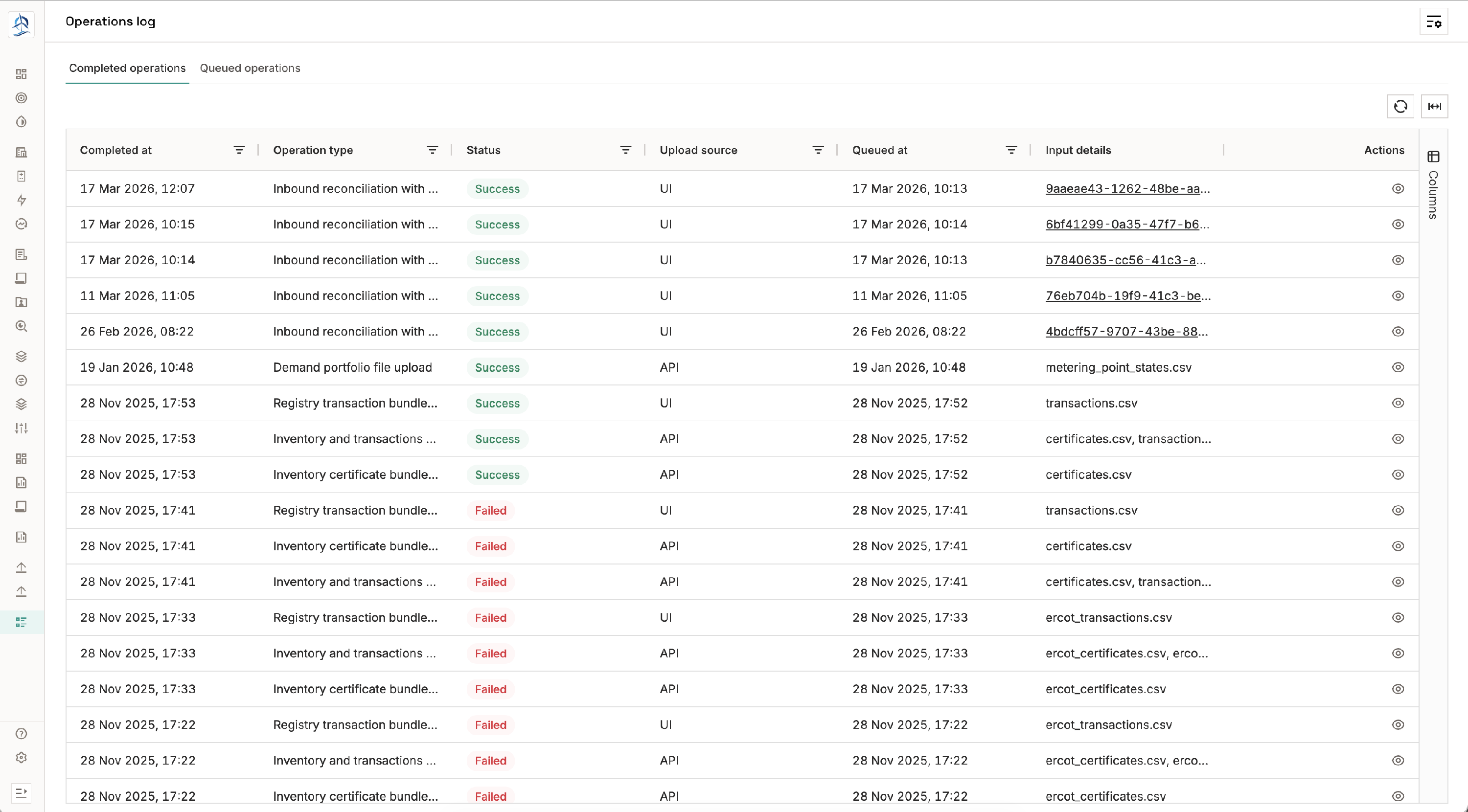
Operations log page
For a more detailed view, there is a dedicated full-page operations log with filters. This is useful if you need to review the history of operations, investigate a failure, or check the status of an operation that was triggered a while ago. For completed operations, you can expand the details to see the specific error
Tips & things to know
- You don't need to stay on the page. Once you've triggered an operation, you can navigate elsewhere in the platform. The operation will continue running in the background.
- Operations are processed in order. If you trigger several operations in quick succession, they will be queued and processed sequentially — not simultaneously. This ensures that the output of one operation doesn't interfere with another.
- Failed operations don't roll back automatically. If an operation fails, check the error details in the operations log.
- API-triggered operations work the same way. Operations triggered via the API are also processed asynchronously and appear in the same operations panel and log.