
Reviewing allocation results
This article explains how to review the results of an automated allocation run using the Allocated Volumes page and the Demand and Supply views.
What is this about?
After running the automated allocation routine, you might want to review that supply has been mapped to the right demand contracts, and that the overall result makes sense for your portfolio. The platform gives you several ways to inspect this: a pivot-table view of all allocated volumes broken down by supply and demand attributes, and dedicated Demand and Supply views that let you explore the picture from either side of the portfolio.
How to check allocations
Step 1 — Run the allocation routine
Before reviewing results, make sure that allocations have been made for the relevant period. Allocations are executed either in collaboration with the Granular Energy Technical Solutions team or by running a pre-defined allocation routine**:**
- Go to Allocation → Routine in the left navigation
- Click Run to execute the routine over your portfolio
Once the run is complete, a new event will appear in Allocation → History.

Step 2 — Explore allocated volumes in the Allocated volumes tab
In the Allocations section, the Allocated volumes tab is your main tool for inspecting what was allocated and how.
- Navigate to Allocation → Allocated volumes
-
The view is a pivot table built on all allocated volume data. By default, it groups results by key dimensions — you can customise rows, filters, and values to answer specific questions
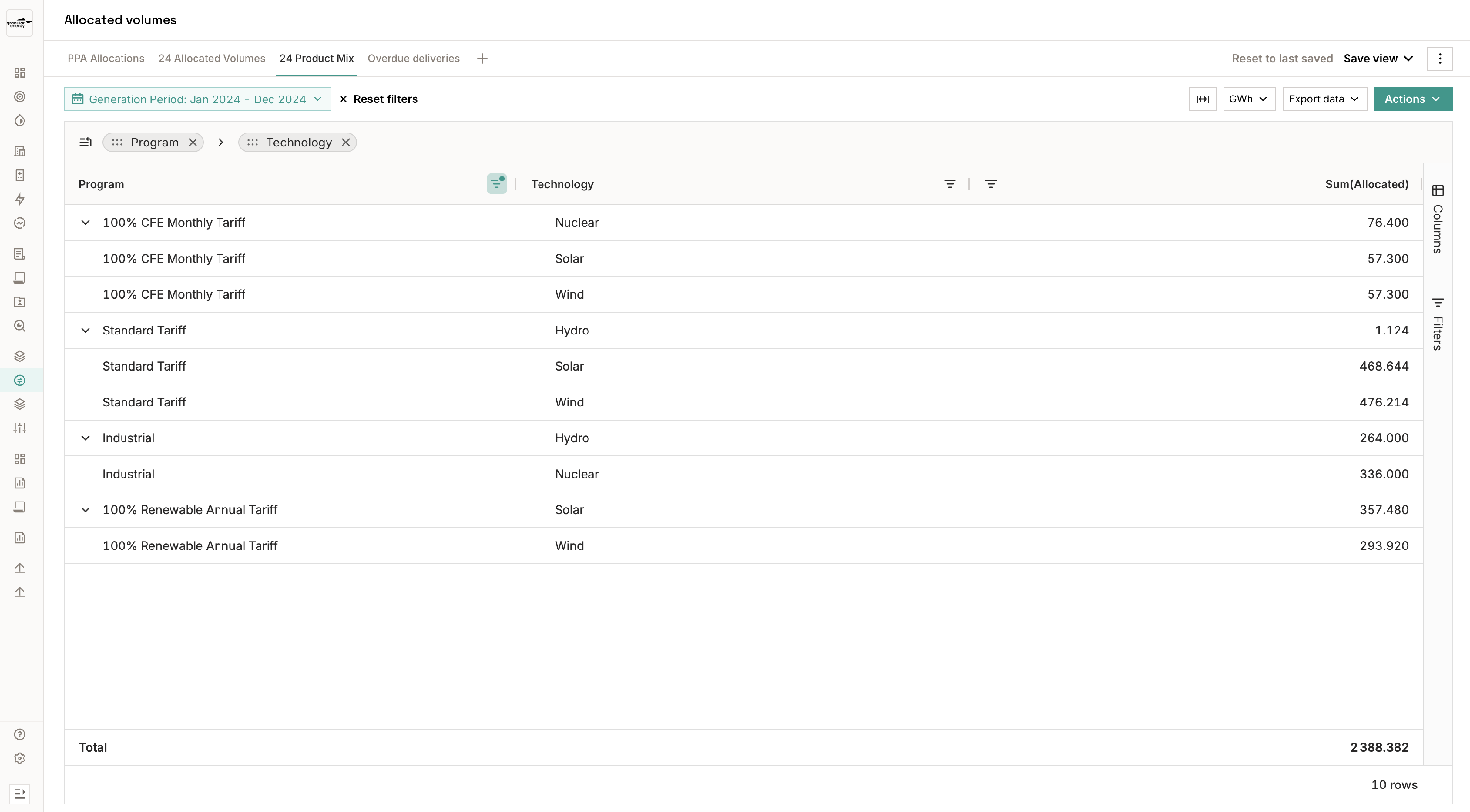
Key concepts to understand:
- Supply type — Contracted vs. Inventory
- "Contracted" means the supply is contracted in the form of a future buy/sell deal or future PPA but the certificate is not yet in your inventory.
- "Inventory" means the certificates is already held in one of your registry account.
- Important to note: Contracted volumes can have optionality, for example a future buy deal might have the quality “Any country, Wind/Hydro/Solar”. This also means that contracted volumes from a deal do not have a value for “Generation Asset” and other fields, as it is not clear yet what asset the certificate will come from. As soon as the corresponding certificates to the deal are delivered and the reconciliation has been done (read the article on inbound reconciliation to learn more), the Contracted volume becomes Inventory and the ambiguity is resolved. We know what country the certificate comes from, that technology and asset were delivered.
- Contract type — Metered vs. Deal
- "Metered" volumes are positions that come from production devices with variable delivery amounts (e.g. an offtake or PPA)
- A “Deal” refers to a fixed volume deal
- “Blank” as a value in the Contract type column refers to the fact that the volumes have been recorded into your inventory without mapping to any existing contract in the platform
- The Allocated volumes view is not the best place to understand "how much of my demand has been fulfilled" or "how much of my supply has been utilised". For those you need Demand view and Supply view respectively. That's because the Allocation volumes view is a many-to-many join between demand and supply so it only shows the total allocation, not the total demand or supply by attribute(s)

How to review Allocated volumes
If you want to manually spot check allocations, the Allocated volumes tab allows you to explore allocations in details. These views can be set up flexibly to include or remove columns and filters as needed. Below is a detailed explanation of what the allocations mean

The leftmost column shows a demand, or sell deal. In this view only the deal reference is displayed. If you prefer to see the counterparty's name, you can add the relevant column. The allocations in rows 1–7 have been made towards one demand deal with the ID "QTE13-COMM-33", whereas row 8 is an allocation towards another deal with the ID "QTE51-COMM-31".
In this case the second column describes the only quality requirement for these deals. It describes that the deal on top requires EACs (We use EAC - Energy Attribute Certificate - to describe all types of certificates including GOs, iRECs, REGOs, HKN, etc.) from Biogas/Biomass; the one below requires "Wind/Hydro/Solar". The following columns describe what EACs are being allocated to the deal:
- #1 is an allocation from a future buy deal that has not yet been delivered. This can be deduced from the Supply type (Contracted) and the Contract type (Buy deal). In the Technology column we can see that the buy deal is restricted to Biomass, so we already know the technology. However, as the concrete EACs have not yet been delivered, we do not know which asset the EAC comes from (Device reference → Unspecified)
- #2–#4 are allocations from GOs that are already in the Inventory, as can be seen in the Supply type. Given that the Contract type is not Metered, we can assume that this was previously a future buy deal such as #1; however, the EACs have already been delivered. As the EACs from this buy deal are already in the inventory we have full transparency on the EAC and we know the concrete asset from which the GO came
- #5–#7 are allocations from a PPA, as can be seen from the Contract type → Metered. The Supply type is Contracted (as opposed to Inventory), implying that the delivery of GOs has not happened yet. We don't know how many GOs will exactly be delivered in the end; the current volume is based on the latest forecast. (If you want to read more on how Granular Energy deals with updating forecasts, you can read the articles Monitor your supply portfolio over time and Monitor your demand portfolio over time)
These are only some examples, you can create and save your own views in order to run the analysis required by your portfolio.
Tips for using the view:
- Add row groups to differentiate volumes by customer, technology, country, etc.
- Apply filters to narrow to a specific period, customer, or supply source without cluttering the view
-
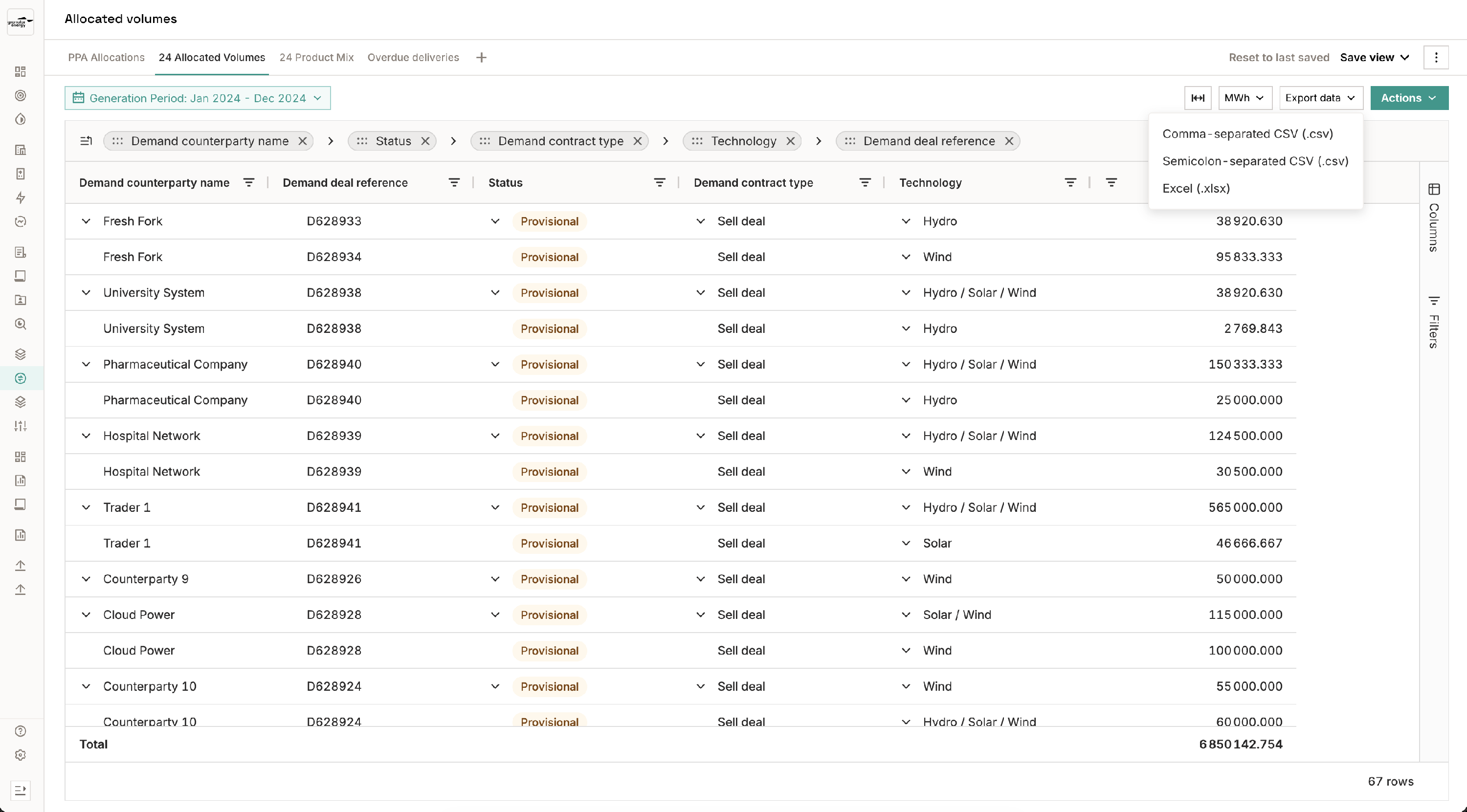
Use the export button (top right) to download the full allocated volume table as XLSX or CSV for offline review or audit purposes
Step 3 — Verify from the demand side: Demand view
The Demand view lets you check whether each customer's consumption or sell deals have been covered by allocations in terms of total volumes.
- Go to Dashboards → Demand view.
- Select the customer or customer group to see allocated vs. unallocated demand volumes.
- Look for any customers with a gap — where the total allocated volume is less than the contracted demand. Note that the Demand view shows total allocated volumes only and does not break down the quality attributes of what was allocated. To verify quality, use the Allocated volumes tab.
By default, the Demand view shows all demand (sell) engagements — including volumes from all demand contracts whether delivered or undelivered, alongside the total allocated volumes made to them.

Step 4 — Verify from the supply side: Supply view
The Supply view (under Dashboards) lets you check how your production volumes and inventory have been distributed across demand.
- Go to Dashboards → Supply view.
- Group by production device or supply type to see how each source has been allocated.
- Check that no supply source is over-allocated or unexpectedly unused.
By default, the Supply view shows the buy side of your portfolio — including reconciled inventory and undelivered volumes from supply contracts, alongside any allocations made from them.

Tips & things to know
- Automated allocations are incremental — if you run the routine multiple times, allocations are additive. Check the History tab to understand what each run added, and delete a run event if it needs to be undone.
- The routine cannot be edited in the UI — if the allocation steps don't reflect your intended logic, contact your Granular onboarding team to update the configuration.
- Manual top-ups are possible — if the routine leaves some demand unallocated, you can use Allocation → Create (Rapid Interactive Allocation) to spot-allocate remaining volumes on top of the automated results.
- Finalisation is separate — interim allocations become "final" only once you initiate and complete a finalisation process from Allocation → History. Final allocations are tied to an outbound certificate delivery.
- Export for audit — the Allocated Volumes view can be exported to XLSX/CSV at any time, providing a record of how supply was mapped to demand.