
Do I have enough certificates in my inventory to cover my allocations?
What is this about?
Not all allocated volumes carry the same level of certainty. When you run an allocation, the platform matches supply against demand — but the supply it draws from can come from two very different places:
- Inventory — certificates you have already received and reconciled into the platform. These are already in your registry accounts. Delivery is certain.
- Contracted supply — volumes you expect to receive based on a signed contract (a buy deal or an offtake contract / PPA), but which haven't been delivered yet as certificates. Delivery is expected, but not guaranteed.
- Dispatched supply — volumes backed by certificates that have already been cancelled, redeemed, or transferred to your customers. These are fully settled allocations and can’t be modified anymore.
Understanding this split is important as it tells you how much of your customer commitment is backed by certificates you actually hold/have been dispatched, versus how much still depends on a future delivery.
How to check your allocation coverage in the Demand view
Navigate to Dashboards → Demand view. This view shows your demand volumes and how they have been allocated.
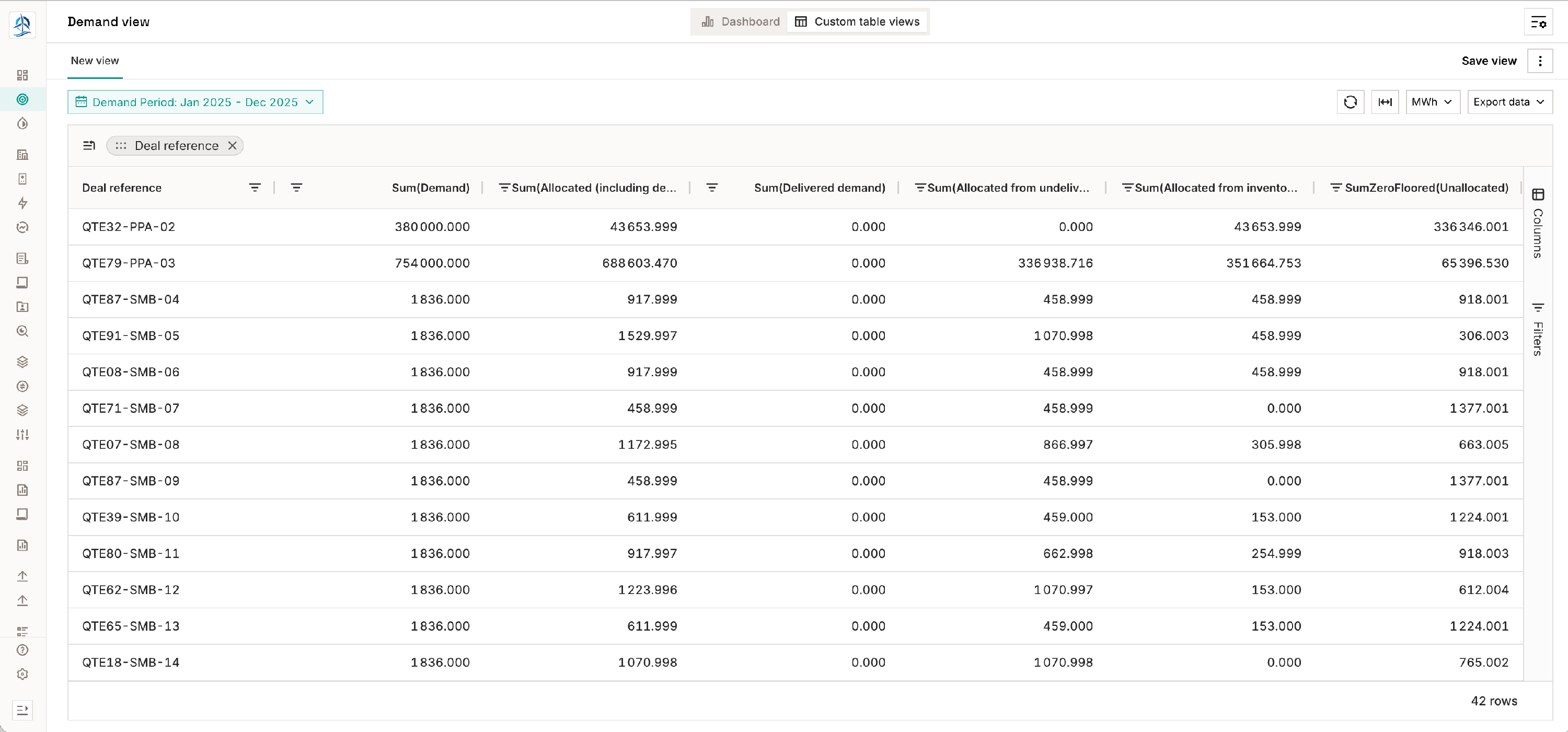
Open the Columns panel on the right side of the grid. Under Volumes, enable the following columns:
- Allocated (including delivered) — the total volume that has been allocated, regardless of whether the underlying supply is inventory or contracted
- Allocated from inventory — the portion of allocated volume that is backed by certificates already in your registry accounts (reconciled inventory)
- Allocated from undelivered contract — the portion backed by a sourcing contract that has not yet been delivered as certificates
- Unallocated — demand volume that has no allocation at all yet
- Demand — your total contracted demand, for reference
You can also add Delivered demand to see how much of the demand has already been fully settled by cancelling or transferring the relevant certificates. These allocation come from supply which is dispatched, which is the final stage of the certificate lifecycle in the Granular platform.
Read the breakdown
Once those columns are visible, each row in the grid gives you a clear picture for that customer, period, or product grouping:
| Column | What it tells you |
|---|---|
| Allocated from inventory | This is your safest allocation — backed by certificates already held. |
| Allocated from undelivered contract | This is allocated but not yet physically delivered. Your counterparty still needs to transfer the certificates. There is delivery risk here. |
| Unallocated | This demand has no supply allocated to it at all. You need to source additional certificates to cover it. |
Act on what you see
- High "Allocated from inventory" relative to total demand → you're well covered; certificates are in hand.
- High "Allocated from undelivered contract" → follow up on expected deliveries; check the Delivery monitoring page to see what's outstanding from your counterparties.
- High "Unallocated" → you have an open position; you need to allocate additional certificates before this demand can be fully covered.
Tips & things to know
- Allocations automatically migrate from contracted to inventory as certificates arrive. When you reconcile an inbound registry transaction against a contract that already has allocations on it, the platform automatically moves the corresponding allocated volume from "allocated from undelivered contract" to "allocated from inventory". You don't need to re-allocate manually.
- Unallocated demand is distinct from undelivered demand. Unallocated means no supply has been allocated to it yet. Undelivered (or "Delivered demand") means supply was allocated but the finalised certificate delivery to the customer hasn't been completed yet. These are different stages of the workflow.
- Grouping helps you prioritise. Use the row grouping options (by counterparty, technology, period, etc.) to identify which customers or programmes have the largest open or at-risk positions.
- The Demand view uses the best available data. Supply volumes reflect the most recently uploaded metering data, so the picture will update as forecasts are replaced by actuals.